How do I enable and disable Spencer AI Assistant?
Updated
For Administrators
Administrators can enable or disable Spencer AI Assistant for all web and mobile users in the web application.
Important
This setting applies company-wide. If Spencer is disabled, it will be disabled for all users in your company.
To customize the experience for your company, follow these steps
- From the home page, click Settings in the left-side menu.
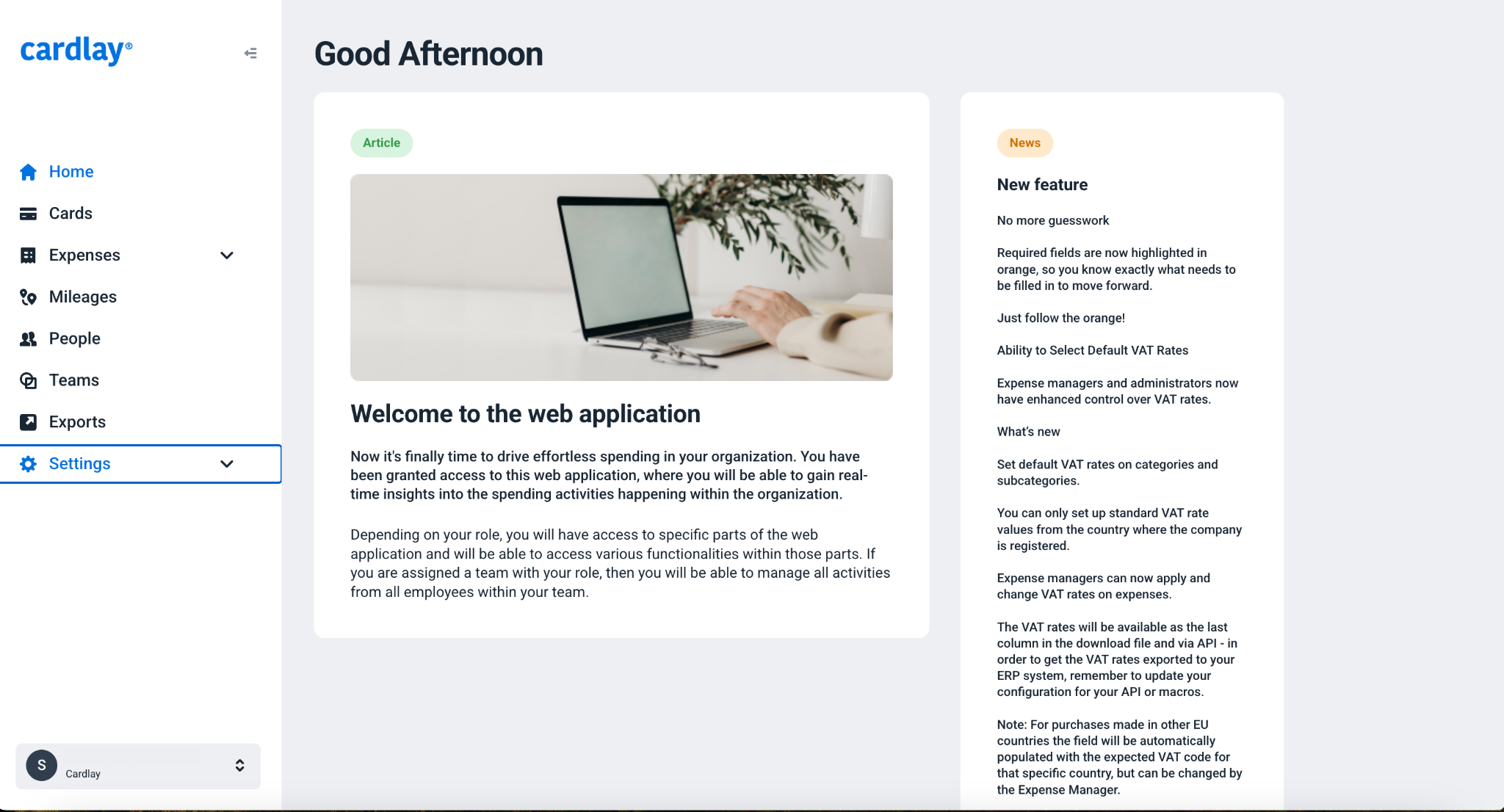
- In the dropdown menu, select Company Settings.
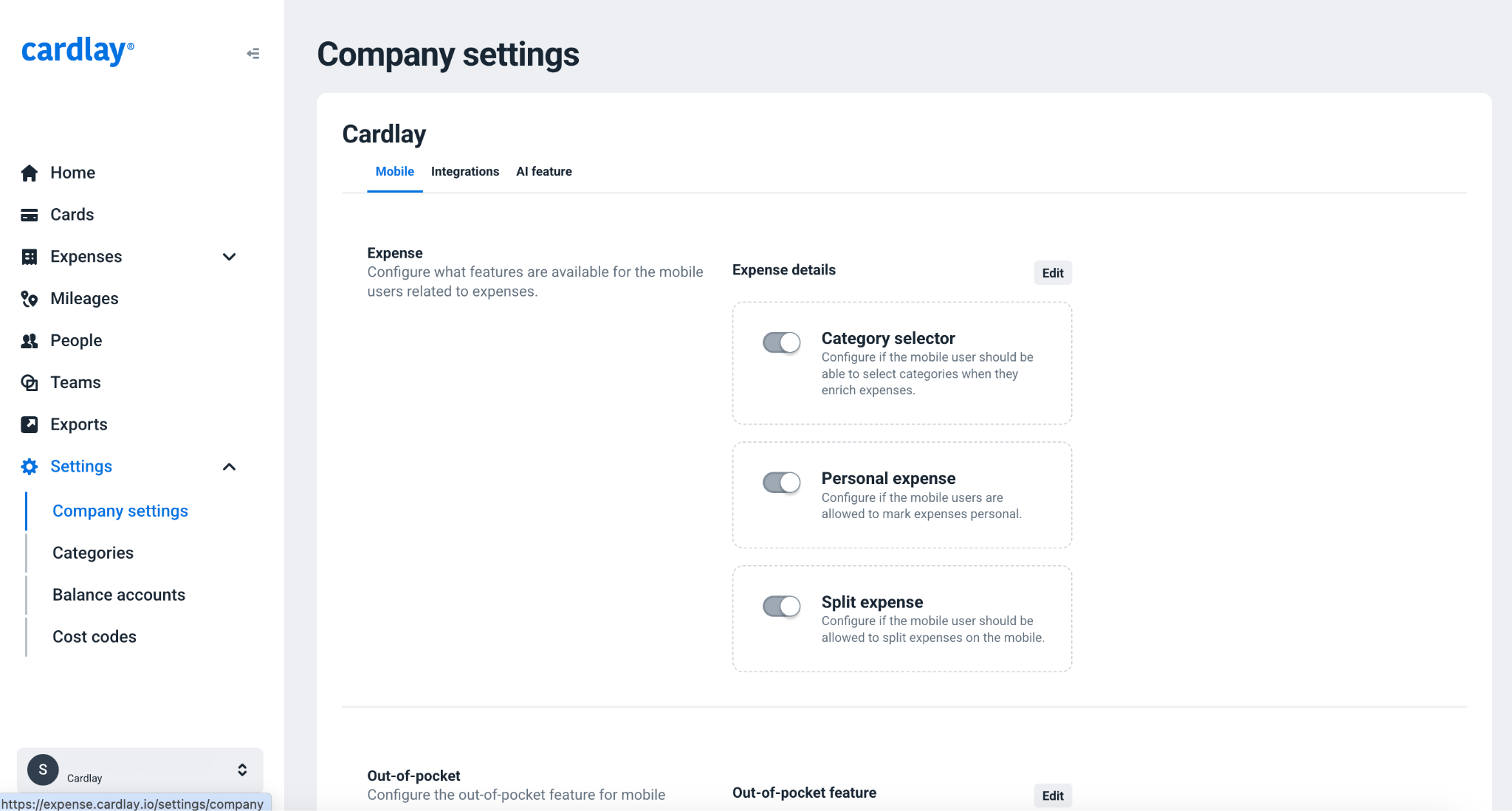
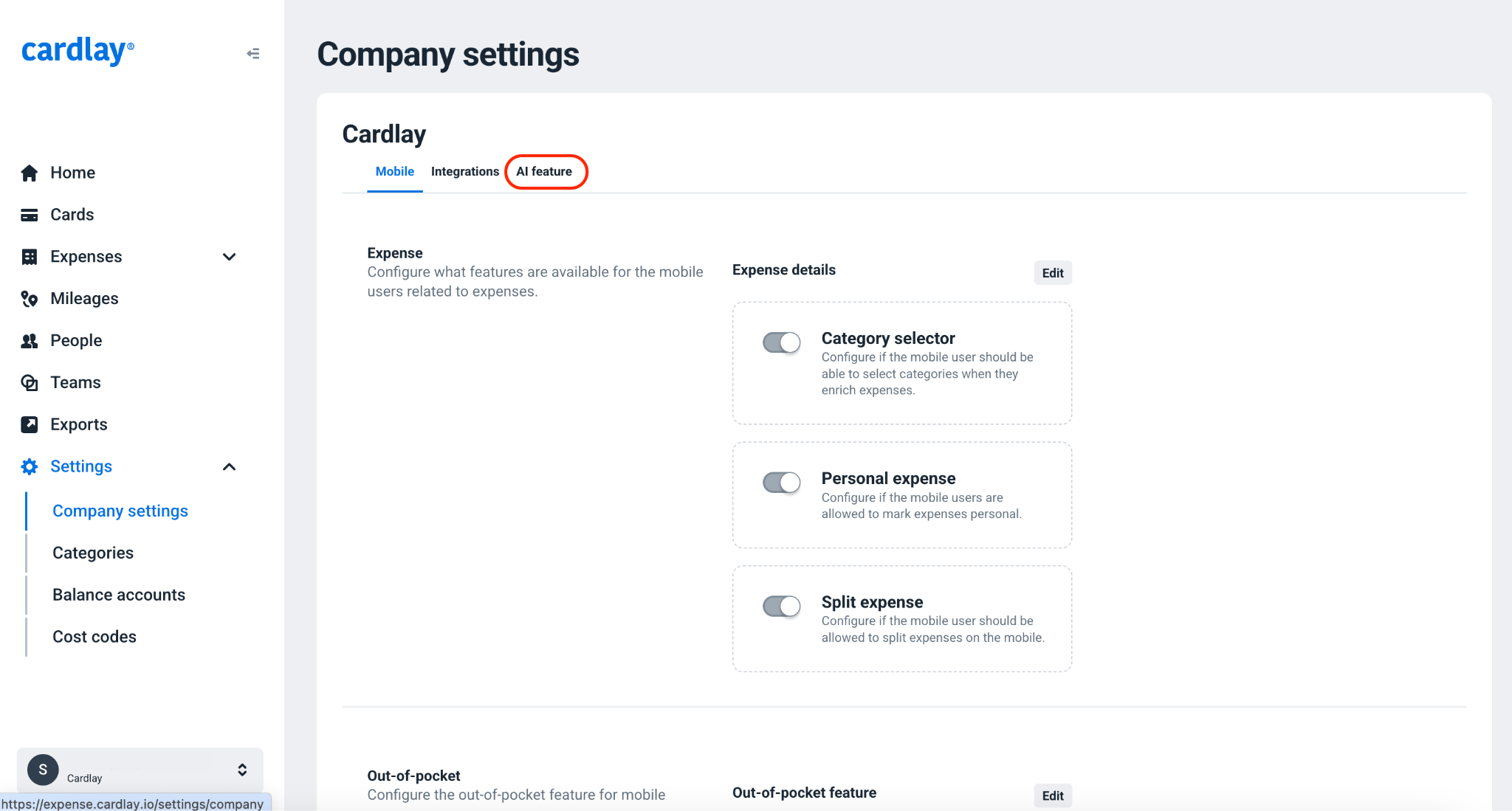
- Click the AI feature tab.
- Click Edit and toggle Spencer on or off.
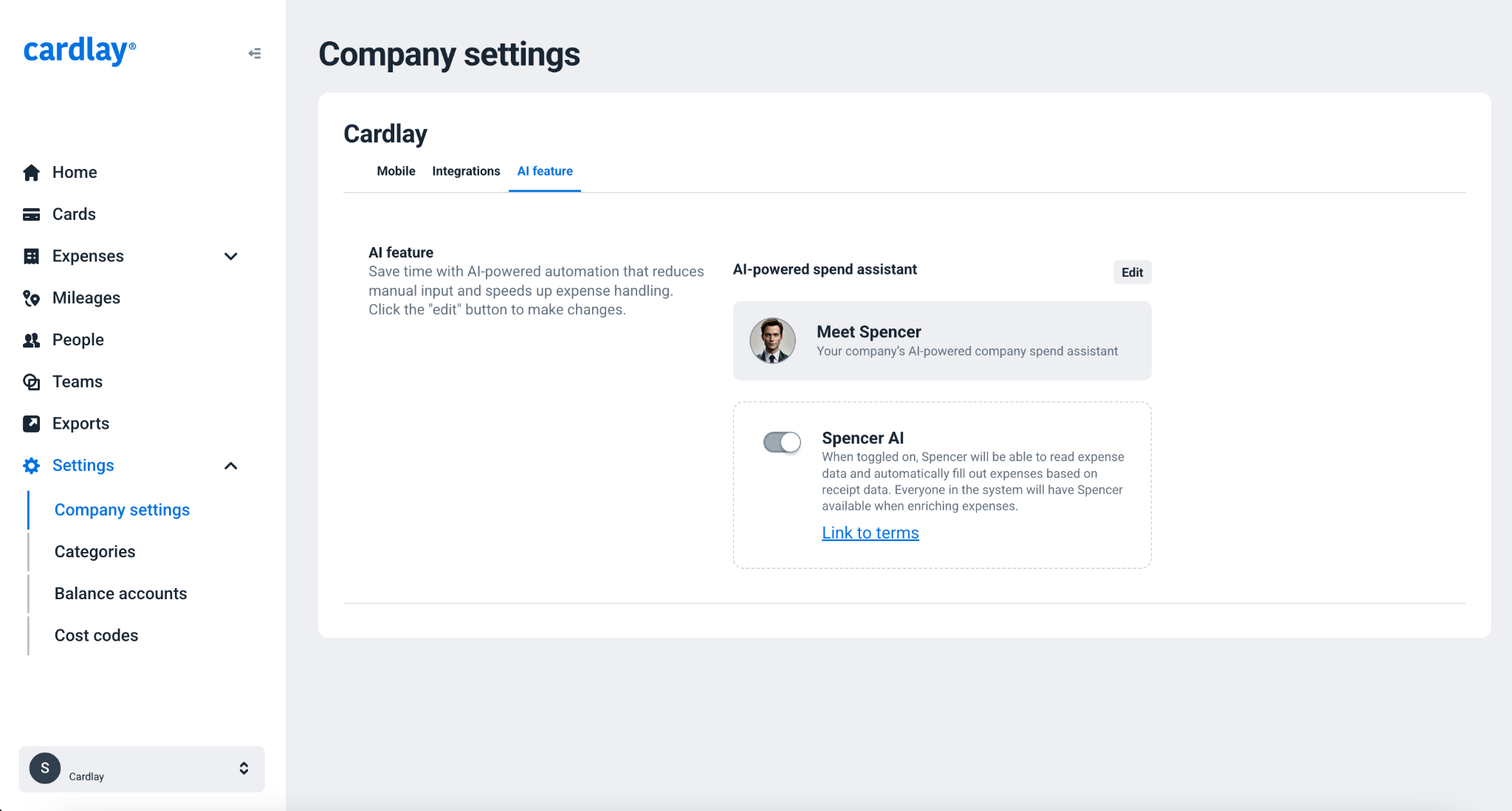
- Click Save to apply your changes.
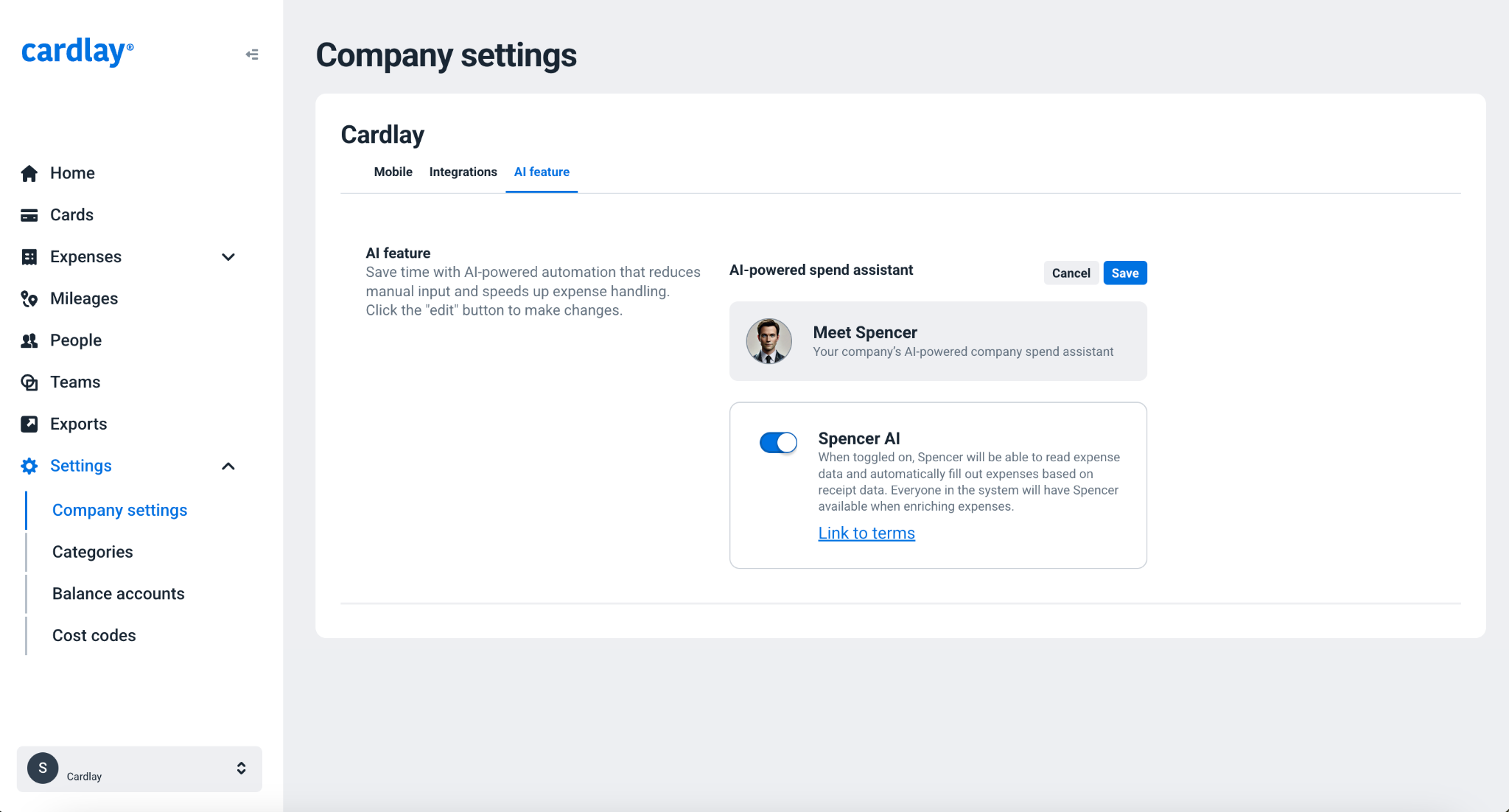
You have successfully customized the Spencer AI Assistant experience for your company.
Was this article helpful?
0 out of 0 found this helpful
https://cardlayhelp.zendesk.com/hc/en-us/categories/4410286099857-FAQ
/hc/theming_assets/01HZM9XD4N9VNKSXR1X9DNRQZ5
FAQ
Dive in and find the answers to common questions about Cardlay Expense
custom
https://cardlayhelp.zendesk.com/hc/en-us/categories/4410027527185-Guides
/hc/theming_assets/01HZM9XD997YS2BVAT50SRN1QR
Guides
Here you can find product guides to everything regarding Cardlay Expense
new_request
/hc/en-us/requests/new
/hc/theming_assets/01HZM9XDHMC63FX0QWH9HX9DAJ
Submit a request
For all other support related questions go here for help
installation, branding, customization